 FollowGrid
 5 min read
An Instagram Following list contains the accounts a profile follows. To save one as a spreadsheet, sign in to Instagram in Chrome, select Following in FollowGrid, run the export, and download the collected accounts as CSV. You can then open the file in Excel or Google Sheets.
Before starting, make sure you need Following, not Followers. If a creator follows 600 accounts and has 20,000 followers, those are two different lists. The export can only collect data available to your current Instagram session.

1. Install FollowGrid and Check Your Instagram Session
Add FollowGrid from the Chrome Web Store. Open Instagram in the same Chrome browser and sign in there. FollowGrid uses that session; it does not ask you to enter your Instagram password into the extension.
If Instagram asks you to complete a sign-in check, do that on Instagram before exporting. FollowGrid cannot bypass a private profile, account challenge, or unavailable list.
2. Enter the Profile and Choose Following
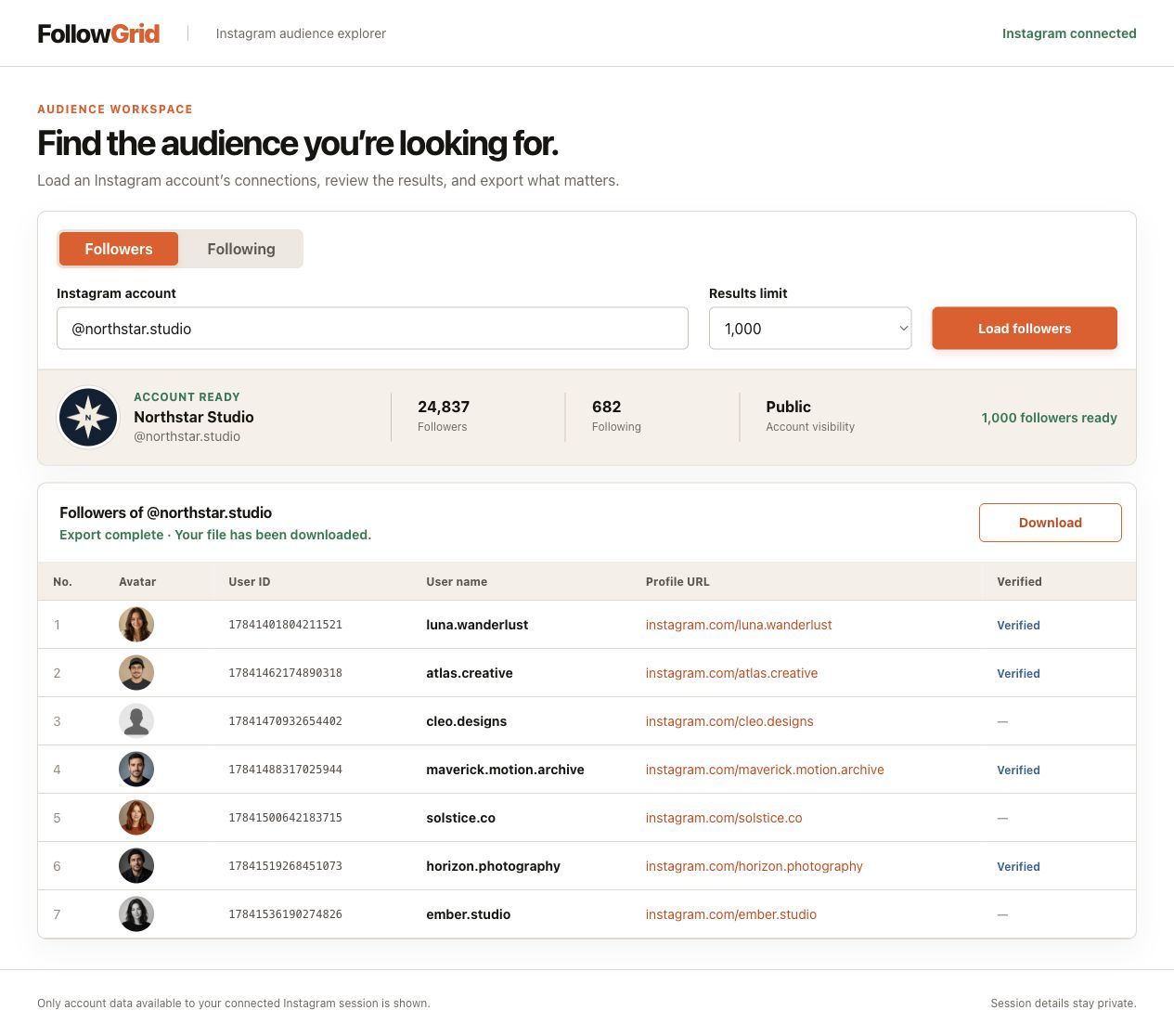
Open FollowGrid and enter the target username or a profile URL such as https://www.instagram.com/username/. Check that you have the correct profile, then choose Following. A post or Reel URL is not a substitute for the profile whose list you need.
Select the collection quantity shown in your current version and start the task. This number sets a request limit. The final file may contain fewer accounts if fewer are available or the task stops early.
3. Review the Result and Download CSV
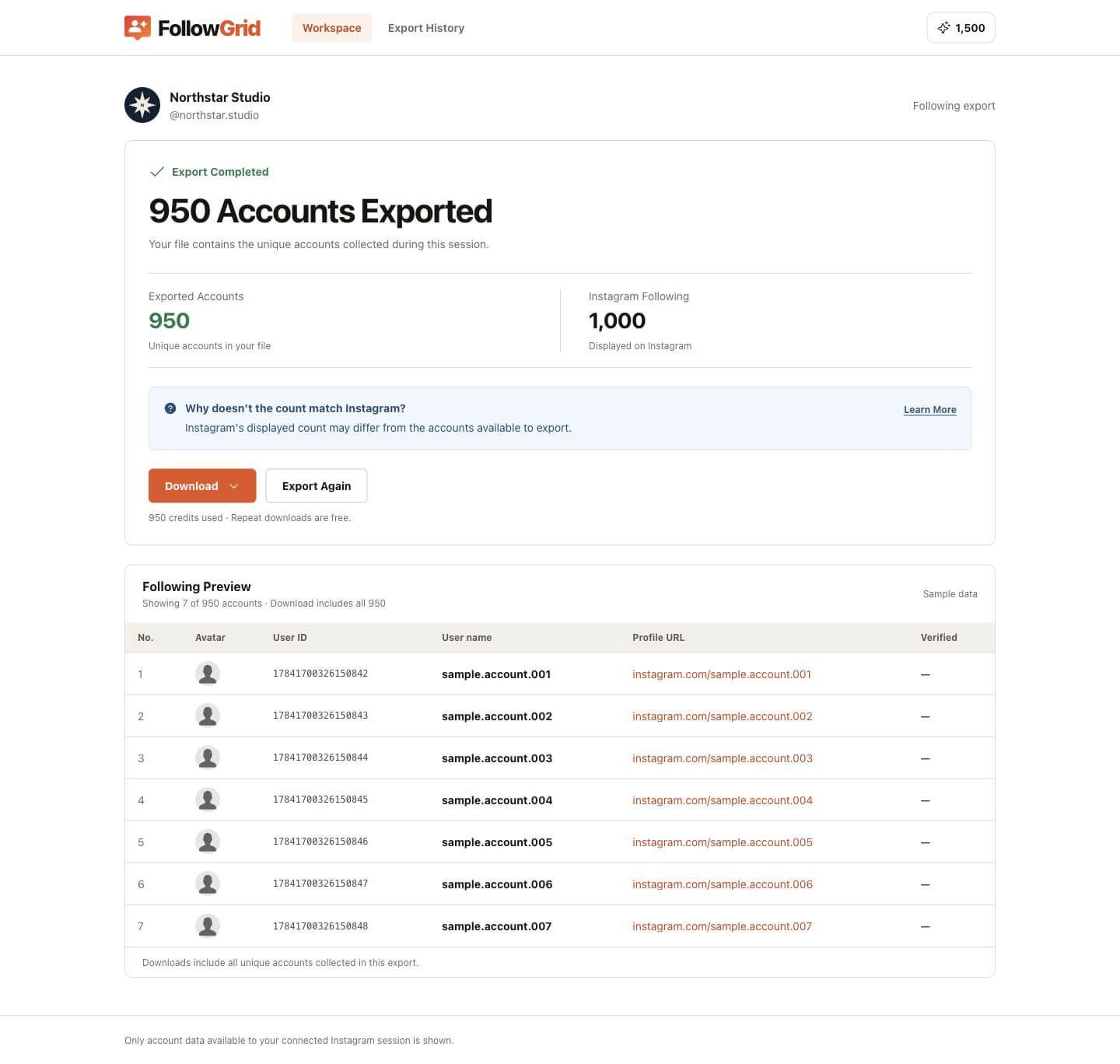
When the task finishes, check the result status and the number of accounts collected. The on-screen preview may show fewer rows than the downloadable file. Download the file, then keep the original untouched before sorting or cleaning a copy.
Name the copy for its source and date, for example brandname_following_2026-10-13.csv. The date in your filename is a label you add; it is not a promise that the export contains the date each account was followed.
4. Open the Following List in Excel or Google Sheets
In Excel: Use Data → From Text/CSV to import the file. Check that the delimiter separates the columns correctly. If the file has a User ID column, set that column to Text before loading. Excel can change long numeric IDs, and formatting an already changed value as text will not restore its original digits. Microsoft's import guide explains the issue.
In Google Sheets: Open a sheet and choose File → Import → Upload, then select the CSV and its separator. Google's import instructions cover the available options. Spot-check usernames, profile links, and any IDs against the original file after import.
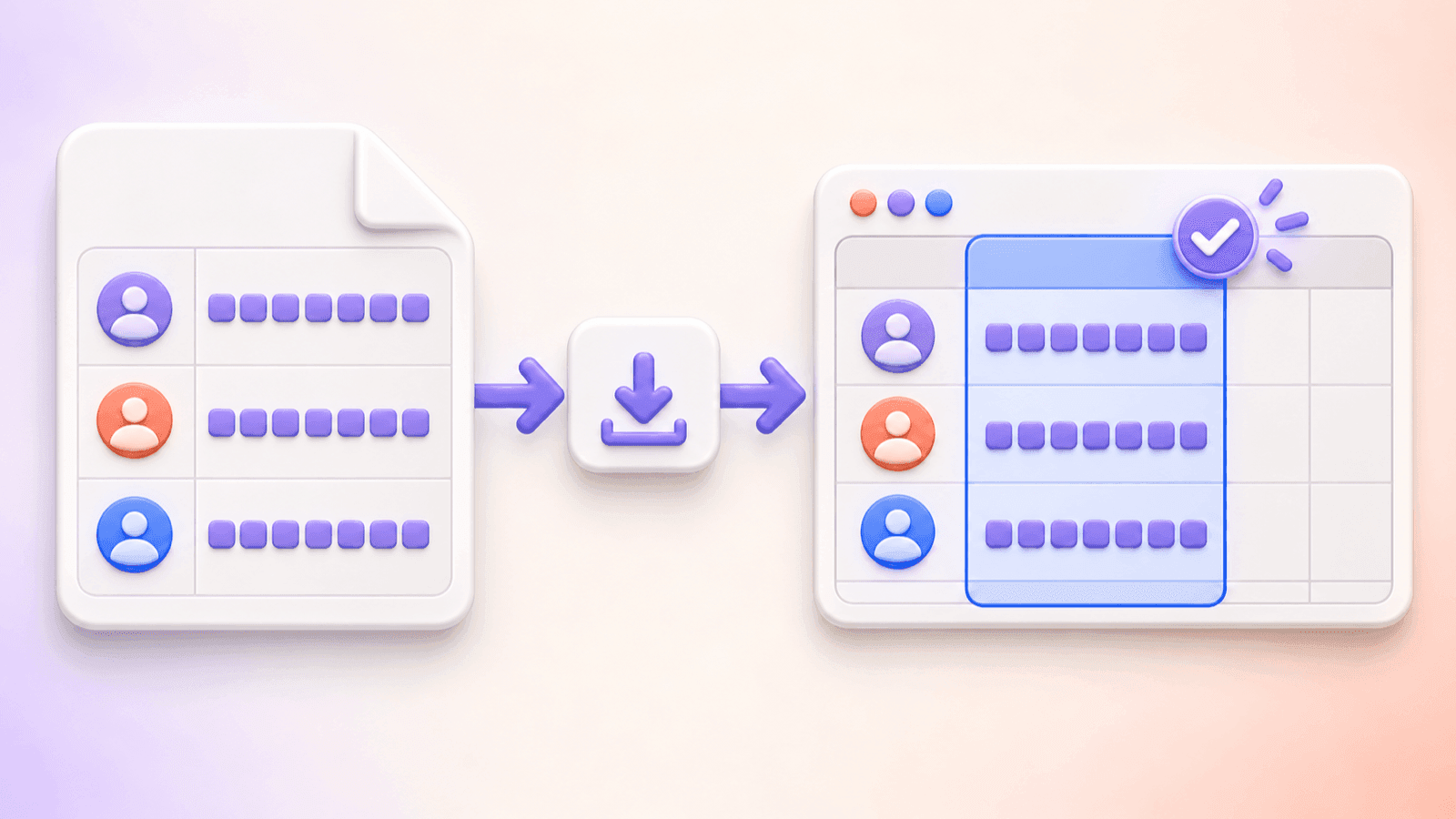
If you just need to filter and review accounts, CSV is usually enough. You do not need a native Excel file to open the list in Excel. FollowGrid's current download menu may also offer an Excel-compatible format; check the options in your version rather than assuming every download menu is identical.
Check the List Before You Use It
Record four details with your spreadsheet: the source profile, Following as the list type, the export date, and the unique number of downloaded rows. Keep the selected quantity and task status too. These details prevent an incomplete or limited list from being mistaken for a full snapshot.
For example, a profile might display 2,400 Following accounts while you request 500 and download 500 unique rows. That file reached your chosen limit; it is not the profile's entire Following list. If you request more than the displayed count but receive fewer rows, inspect the task result and access conditions. The two numbers alone do not identify a single cause.
The file is useful for reviewing profile links, building a manual shortlist, or comparing two saved lists. It does not show when each follow began, who recently unfollowed whom, or whether an account is a suitable collaborator. Row order is not a follow-date field.
When Instagram's Official Export Is a Better Fit
If you need a copy of your own Following information rather than a spreadsheet from an accessible profile, Instagram's account export is another route. Meta places its information download controls in Accounts Center. Choose the account and the Followers and following information if that category is offered. The archive may be HTML or JSON and may need preparation before it becomes a spreadsheet.
Meta's account export does not provide another person's private archive. FollowGrid's Chrome workflow is limited to lists your signed-in Instagram session can access.
Frequently Asked Questions
Can I export someone else's Instagram Following list?
FollowGrid can collect a Following list when it is available to your Instagram session. A username alone does not grant access to a private or unavailable list.
Do I need to sign in to Instagram?
Yes, for the FollowGrid Chrome workflow. Sign in on Instagram in the same browser. You do not enter your Instagram password into FollowGrid.
Does a CSV show when an account was followed?
No. Treat the file as a list collected during your export. Do not infer follow dates from row order.
Can I find accounts that do not follow me back?
You would need both your Following and Followers lists from the same profile, then compare the downloaded files. FollowGrid exports the lists; it does not establish a follow or unfollow event from one file. Check that both exports have comparable scope before interpreting differences. The list comparison guide shows a spreadsheet workflow.
Save Your Following List
When you're ready to work in a spreadsheet, get FollowGrid from the Chrome Web Store, choose Following, and download the accounts collected during your task. Save the original file with the source profile and export date for future reference.
 M
MMarshall Sun
Building CommentGrid to decode social conversations. Exploring the signal within the noise of the global social web.