 FollowGrid
Instagram Following to CSV for Excel & Google Sheets
Download the accounts a public Instagram profile follows as CSV, then import the file into Excel or Google Sheets. Use the tips below to preserve account IDs, check columns, and organize your following list in a working spreadsheet.
Public Instagram profile URL



Need More Control Over Your Export?
Use FollowGrid to choose Followers or Following, set how many profiles to collect, and stop anytime without losing collected results.
Add to Chrome Add to Chrome
How to Export an Instagram Following List to CSV
Download the returned accounts, import the file, and check your spreadsheet before editing.

Create your following CSV
Enter a public Instagram profile URL and run the tool. Review the accounts it follows, then choose CSV to download the returned rows. Each task returns up to 25 accounts and may return fewer.

Import into Excel or Google Sheets
Use your spreadsheet app's CSV import options. Select a comma separator and preserve User ID values as text during import so long identifiers are not rounded.

Check the file and save a working copy
Check that names and profile links appear in the correct columns, and compare User ID values with the original file. Keep the downloaded CSV, then save a separate spreadsheet for sorting and notes.
What data is included
| Field | Description |
|---|---|
| Username | The username of an account the source profile follows. |
| Full name | The display name of the returned account. |
| User ID | The Instagram identifier of the followed account. |
| Verified status | Whether the returned account is verified. |
| Private account | Whether the returned account is private. |
| Profile URL | A link to the followed account’s Instagram profile. |
Make Your Following CSV Easier to Work With
Prepare the returned account list for spreadsheet review without losing identifiers or mixing up fields.
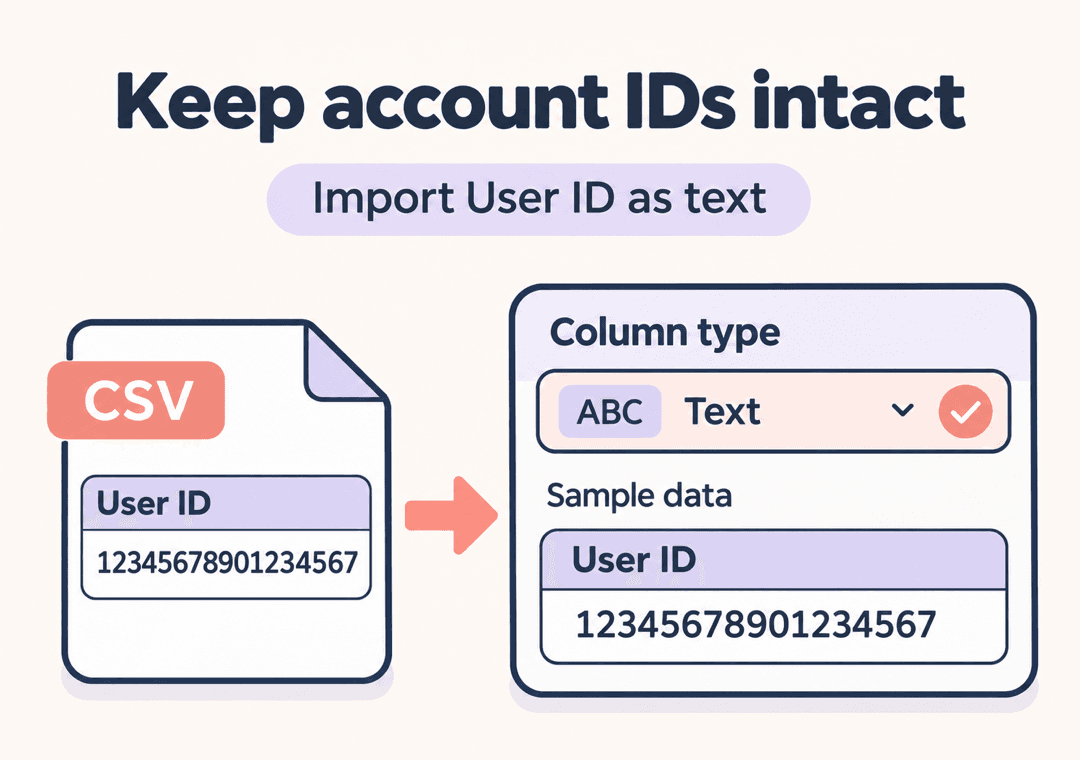
 Keep account IDs intact
Import User ID values as text. Long numeric identifiers can lose digits when a spreadsheet treats them as numbers. If that has happened, re-import the original CSV with text settings; changing the display format afterward will not recover lost digits.
- Preserve IDs as text
- Check against the original file
- Re-import if digits were changed

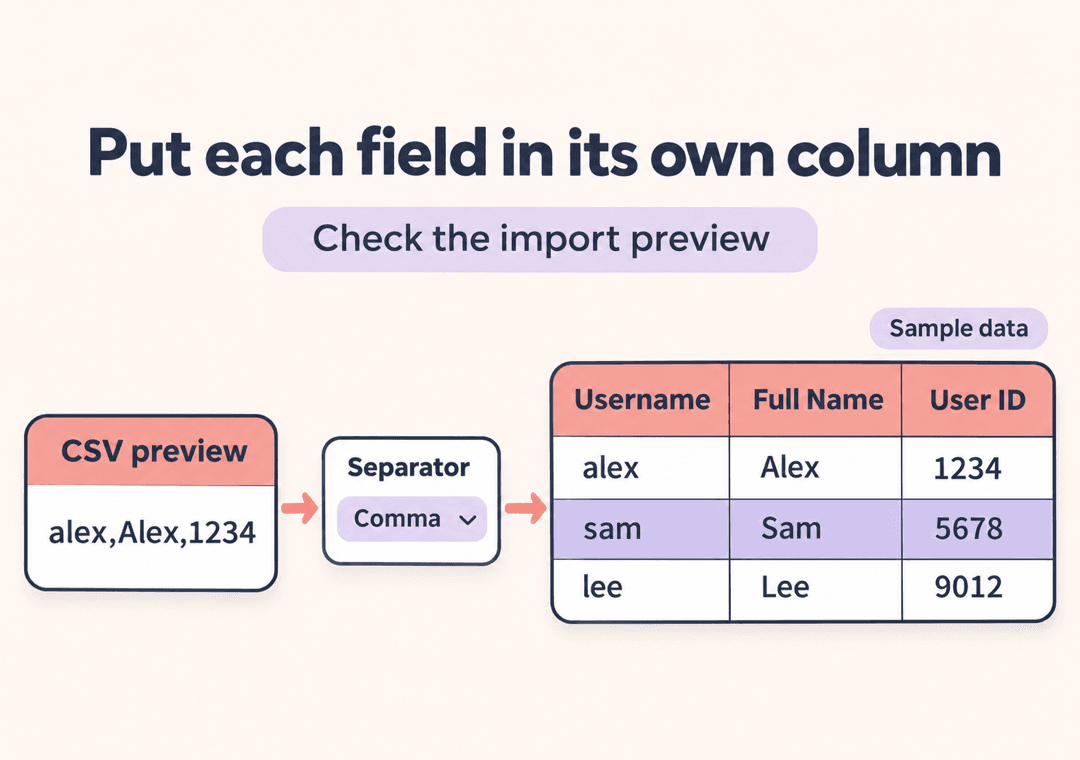
 Put each field in its own column
This CSV uses commas to separate fields. Check the import preview so usernames, names, and profile links stay in their own columns. When sorting, select the entire table to keep each account's details together.
- Choose the comma separator
- Check the header row
- Sort complete account rows
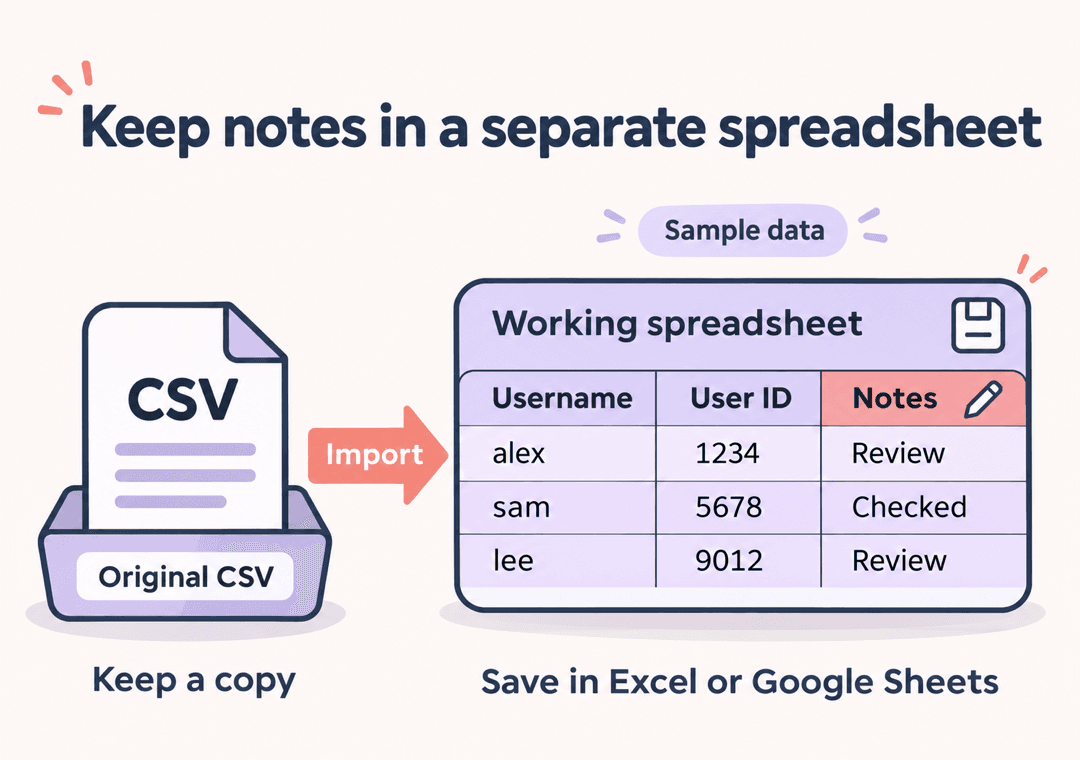
 Keep notes in a separate spreadsheet
Save the imported list as an Excel workbook or Google spreadsheet before adding categories, review notes, or formatting. Keep the original CSV separately so you can start again from the downloaded data.
- Keep the source CSV
- Add your own notes
- Save spreadsheet formatting
What You Can Do With a Following CSV
Review the accounts a profile follows
Use the returned list to review the profile's following accounts in a spreadsheet. It describes who that profile follows, rather than who follows it.
Keep account details together
Work with the fields shown in the results preview. Keep usernames, IDs, and profile links on the same row so sorting does not separate one account's details.
Add your own review categories
After importing, add your own notes or categories in a separate spreadsheet. These are labels you create, not account analysis generated by this tool.
Use one CSV in your preferred spreadsheet
Download the file and import it manually into Excel or Google Sheets. Save a workbook or Google spreadsheet if you want to retain formatting and additional sheets.
Instagram Following CSV: Download and Import FAQs
How do I export an Instagram following list to CSV?
Enter a public Instagram profile URL, run the tool, and review the returned accounts. Choose CSV to download the rows, then import the file into your spreadsheet. This website tool returns up to 25 accounts per task; it does not guarantee a complete following list.
Does this CSV contain following accounts or followers?
It contains accounts the source profile follows. Followers are accounts that follow the source profile. If you need those instead, use the Instagram Followers to CSV tool.
How do I import the following CSV into Excel?
Use Excel's Data > From Text/CSV option and check the comma-separated preview. In the import or transformation settings, make User ID a Text column before loading it. If an automatic numeric conversion has already rounded IDs, restart from the original CSV and prevent that conversion.
How do I import the following CSV into Google Sheets?
Open a spreadsheet and choose File > Import, then upload the CSV and select the comma separator. If the import dialog offers automatic conversion of text to numbers, dates, and formulas, turn it off to preserve IDs as text. Check imported IDs against the original file before adding notes.
Can I download the complete Instagram following list?
This website tool returns up to 25 accounts per task, and the actual result may be smaller. A successful download does not mean the file includes every account the profile follows. Treat the CSV as the rows returned for that request.
Why does the CSV open in one column or show incorrect names?
If each row appears in one cell, import the file again with Comma selected as the separator. If accented names or other characters look garbled, use UTF-8 in the import settings where available. Check the preview before loading the file.
Why did a User ID change in my spreadsheet?
A spreadsheet may treat a long ID as a number and round its digits. Scientific notation is a reason to check the value, but does not by itself prove digits were lost. Compare it with the original CSV. If it changed, re-import the source with IDs preserved as text; formatting the rounded value as text will not restore it.
Can I sort the following list and add notes?
Yes, after importing it into your spreadsheet. Sort the whole table to keep account fields together, and add your own notes in a working copy. Keep the original CSV separately and save the working file as an Excel workbook or Google spreadsheet to retain formatting.
Does the CSV show follow dates or sync with my spreadsheet?
No. The export does not provide follow dates, historical tracking, or unfollower detection, and its order is not guaranteed to be chronological. You download and import the CSV manually; there is no automatic spreadsheet sync or native XLSX download from this website tool.
More Tools
Instagram Followers to CSV
Download follower data from a public Instagram profile as CSV, then bring it into Excel or Google Sheets. Follow the import tips below to keep account IDs intact and display names in the right columns.

Instagram Following Exporter
Use FollowGrid to export Instagram followed accounts and pick winners for Instagram Following Exporter.

Instagram Follower Exporter
Use FollowGrid to export Instagram followers and pick winners for Instagram Follower Exporter.